Talk to our live
SEO data engine.
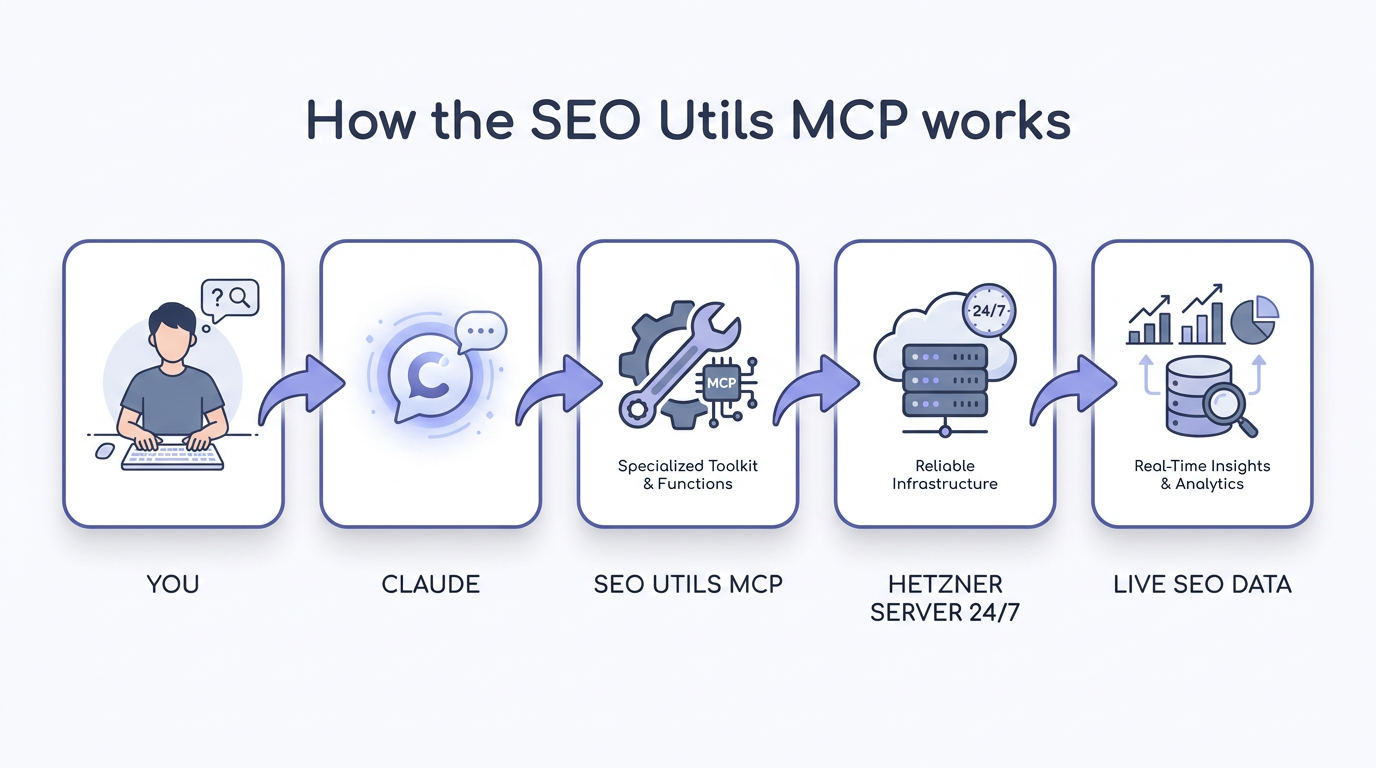
We connected Claude to SEO Utils running 24/7 on our server. You don't run code or click dashboards — you just ask Claude a question and real keyword, SERP, backlink, traffic, and competitor data comes back.
Watch the 75-second walkthrough narrated by Mike
The quick tour before you dive in.
What is "the MCP"?
MCP is just the pipe between Claude and our SEO engine. You never touch the pipe. Think of it like giving Claude a phone line to a senior SEO analyst who has every tool open.
- 1. You type a question in normal English.
- 2. Claude picks the right tool out of 63 automatically.
- 3. It pulls live data (DataForSEO + our database).
- 4. Claude answers — tables, charts, full reports.
No commands. No flags. No exports. Just conversation.
Where you can use it
Same engine, four front doors. Pick whatever you live in.
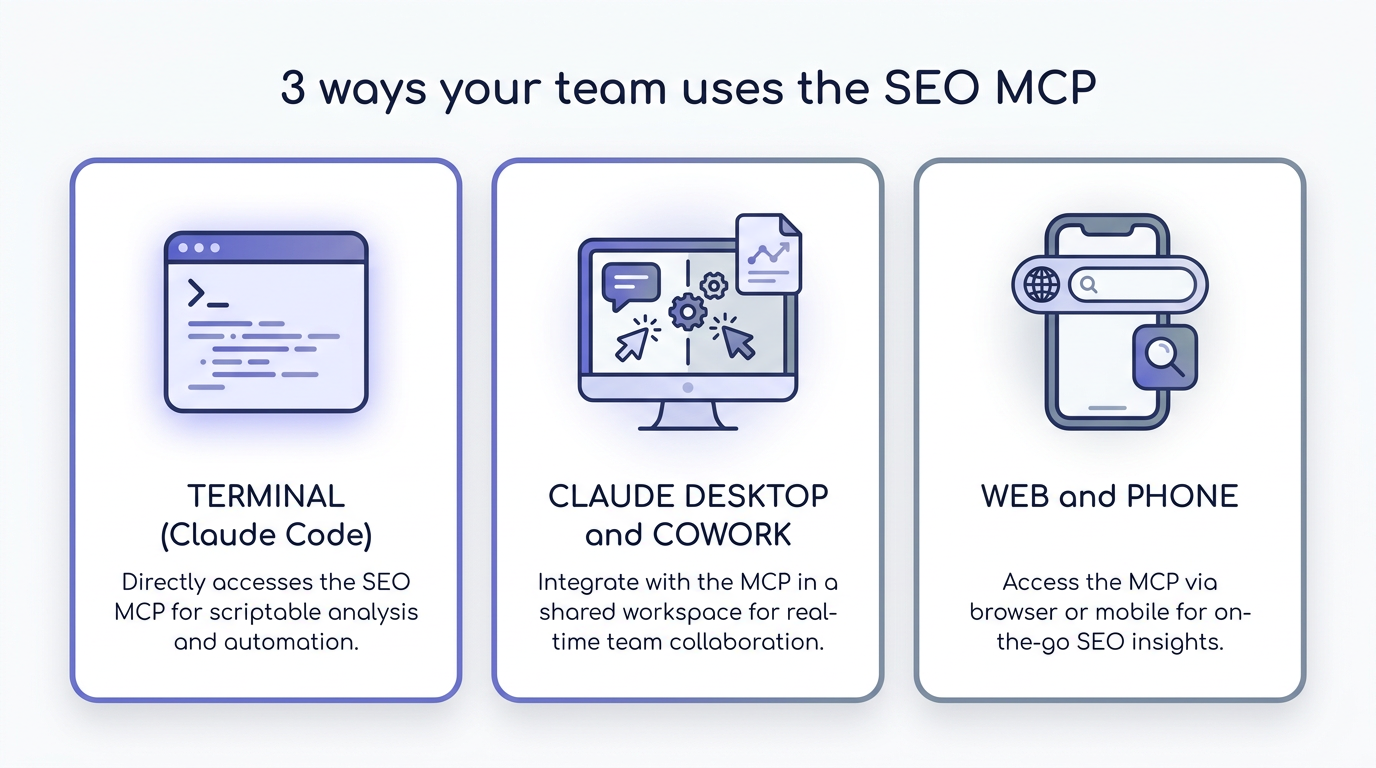
Claude Code
Best for devs and power users. Connect once, then ask in any project.
1 — Connect (one time, paste as ONE line):
2 — Verify:
3 — Just ask:
Claude Desktop
Add this to your claude_desktop_config.json (needs Node.js installed), then fully quit and reopen Claude.
Then ask in the chat:
Cowork & Dispatch (from your phone)
Once SEO Utils is connected in Claude Desktop, you can fire off tasks from your phone with Dispatch in Cowork. Claude runs them on the desktop and texts you back the result.
Dispatch from your phone:
Note: the desktop must be awake with Claude open. Pro/Max plan.
claude.ai (browser & mobile)
No install. In claude.ai go to Settings → Connectors → Add custom connector (Pro/Max plan).
Connector URL:
Auth header:
Then ask:
OpenAI Codex (CLI, App & IDE)
Codex connects over HTTP with a bearer token. Add this block to ~/.codex/config.toml (Windows: %USERPROFILE%\.codex\config.toml). The desktop app, CLI, and IDE extension all share it.
1 — config.toml:
2 — export the token (Windows PowerShell):
macOS / Linux:
3 — run codex, type /mcp to confirm, then ask:
Prompt library
Copy, paste, tweak the domain/keyword. Works in every surface above.
Getting your token
Get the token
Ask Mike for the team Bearer token. It's a secret — treat it like a password, never commit it.
Drop it in
Replace <YOUR_TEAM_TOKEN> in the snippet for your surface. Paste tokens as one unbroken line.
Ask away
Start a fresh session and ask a question. The 63 tools fire automatically.
https://seoutils-mcp.imerlino.com/mcp — protected by the Bearer token (no token = 401). Don't post the token in Slack, screenshots, or public repos.
Pro tips
Tip 01
Say "in GSC" for our own data
Add "in GSC" when you mean our Search Console data (cannibalization, weak pages) vs third-party estimates. (GSC link is being set up.)
Tip 02
Data lives on the server
A tool may say "saved to the database." Just reply "now show me those results in a table" and it pulls them.
Tip 03
Name "seo-utils" if it's shy
If Claude doesn't reach for it, start your prompt with "using seo-utils, ..." to nudge it.